Cloud configs
On this page
Octarine now has a unified config system — and it works across all our games: Dota 2, Deadlock and CS2. Configs live in the cloud and sync between devices. Share your setup with a code, grant access to a specific player, or publish a config for everyone — complete with likes. Everything is available both in the Octarine client and right in-game.
We've already carried your existing settings over and kept full compatibility — there's nothing you need to set up again.
Your configs, now in the cloud
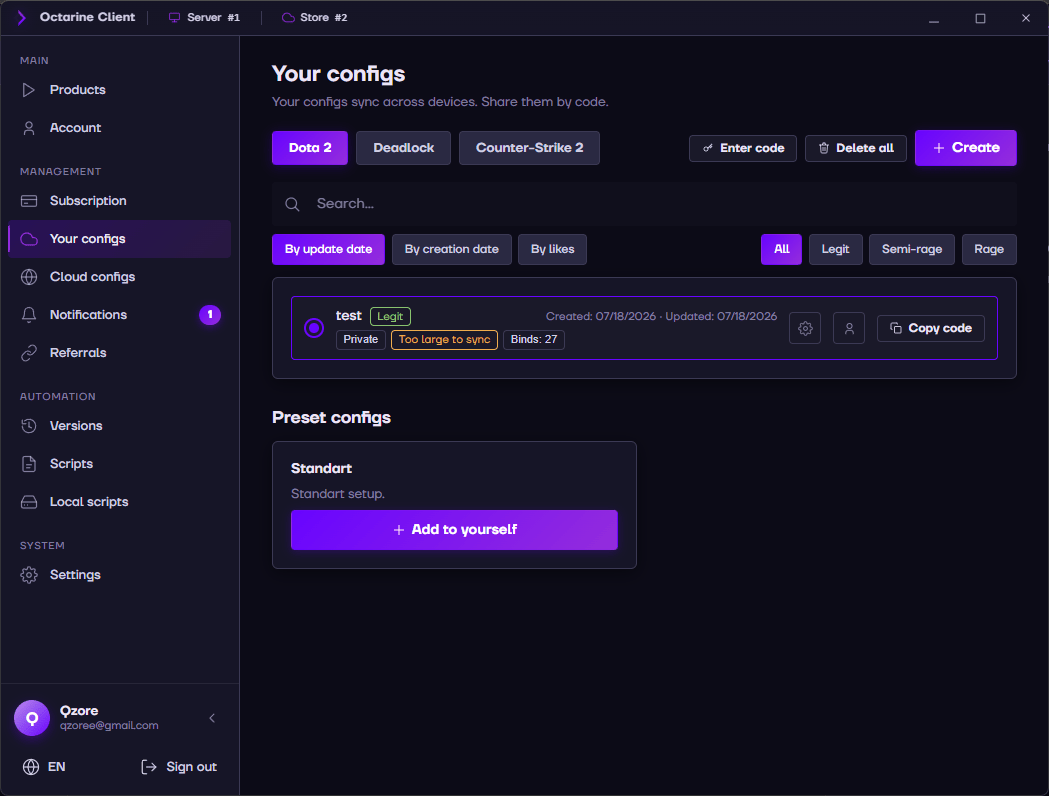
The client has a new Your configs section: every saved setup for each game, gathered in one place.
- Configs sync across devices — sit down at another PC, log in, and all your settings are right there.
- Every config shows its category (Legit / Semi-rage / Rage), the number of keybinds, and its creation and update dates.
- Search and sorting are built in: by update date, creation date or likes.
- Below them — ready-made presets from the team, each added to your list in one click.
Share your setup, your way
There are three ways to share any config:
- By code — hit Copy code and send it to anyone: they enter the code on their side and get your config.
- Access for a specific player — grant access to a chosen user, and only they will see the config.
- Public config — switch off private, and the config becomes visible to everyone in Cloud configs, where any player can add it.
Public configs and likes
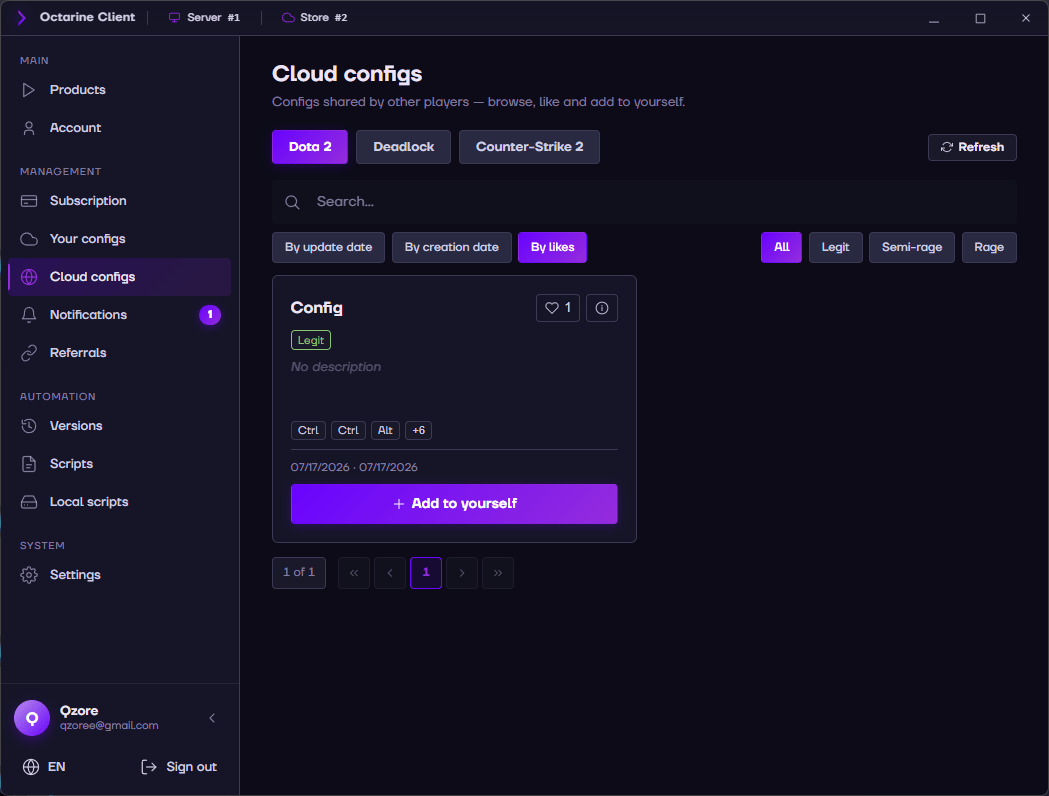
The Cloud configs section shows public configs from other players: browse, like and add them to yourself.
- Filters by game and category (Legit / Semi-rage / Rage), sorting by likes or dates.
- Each card shows the description, category, dates and like count.
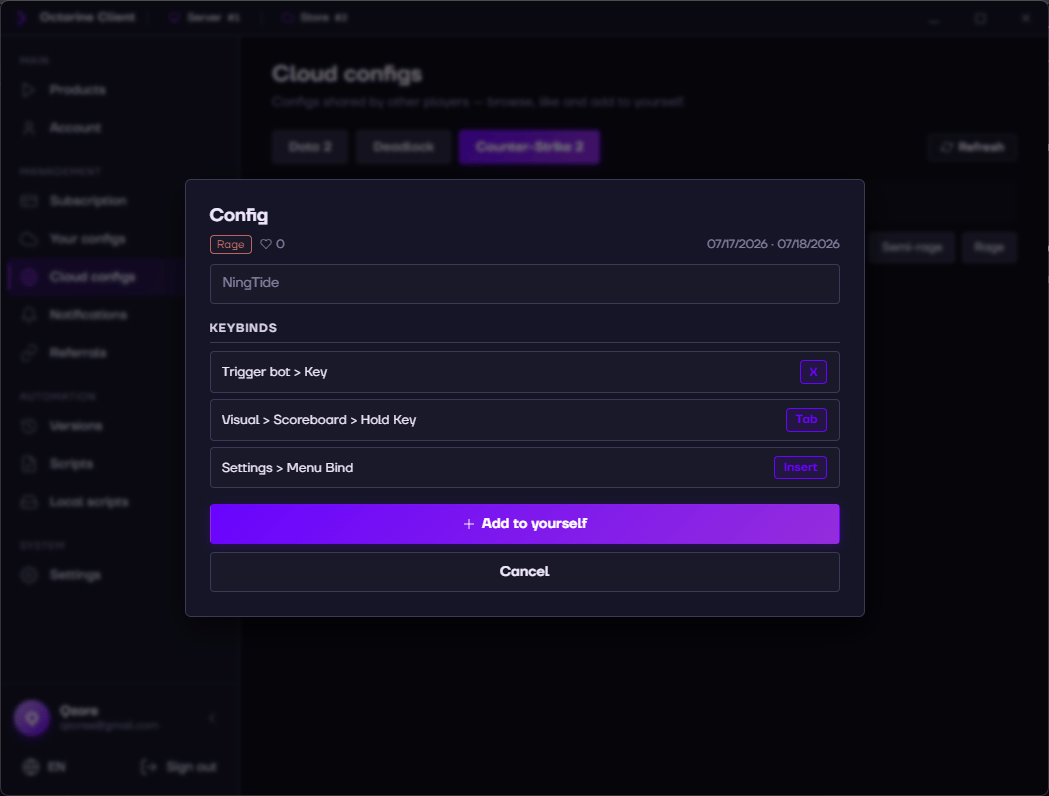
- Before adding, open a config to see all of its keybinds — which key does what.
- Like the configs you enjoy — that's how the best setups rise to the top.
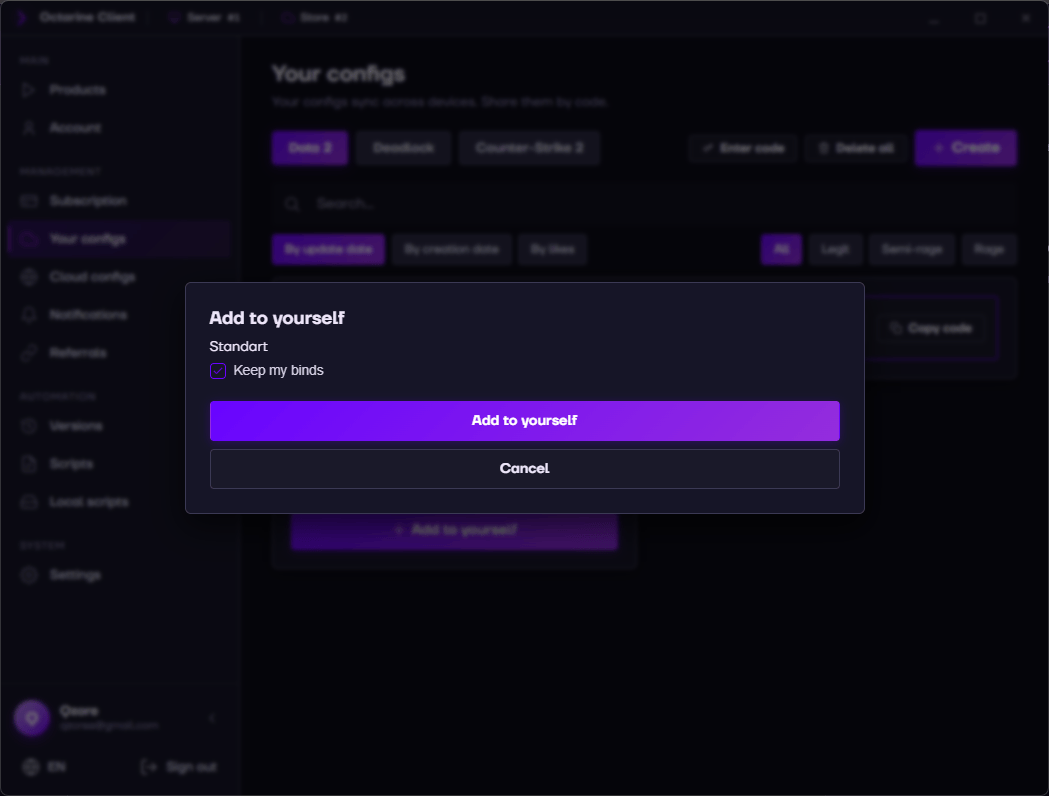
- One press of Add to yourself and the config is in your list.
- Adding someone else's config doesn't mean giving up your keys: tick Keep my binds and the settings apply while your binds stay yours.
All of it works in-game too
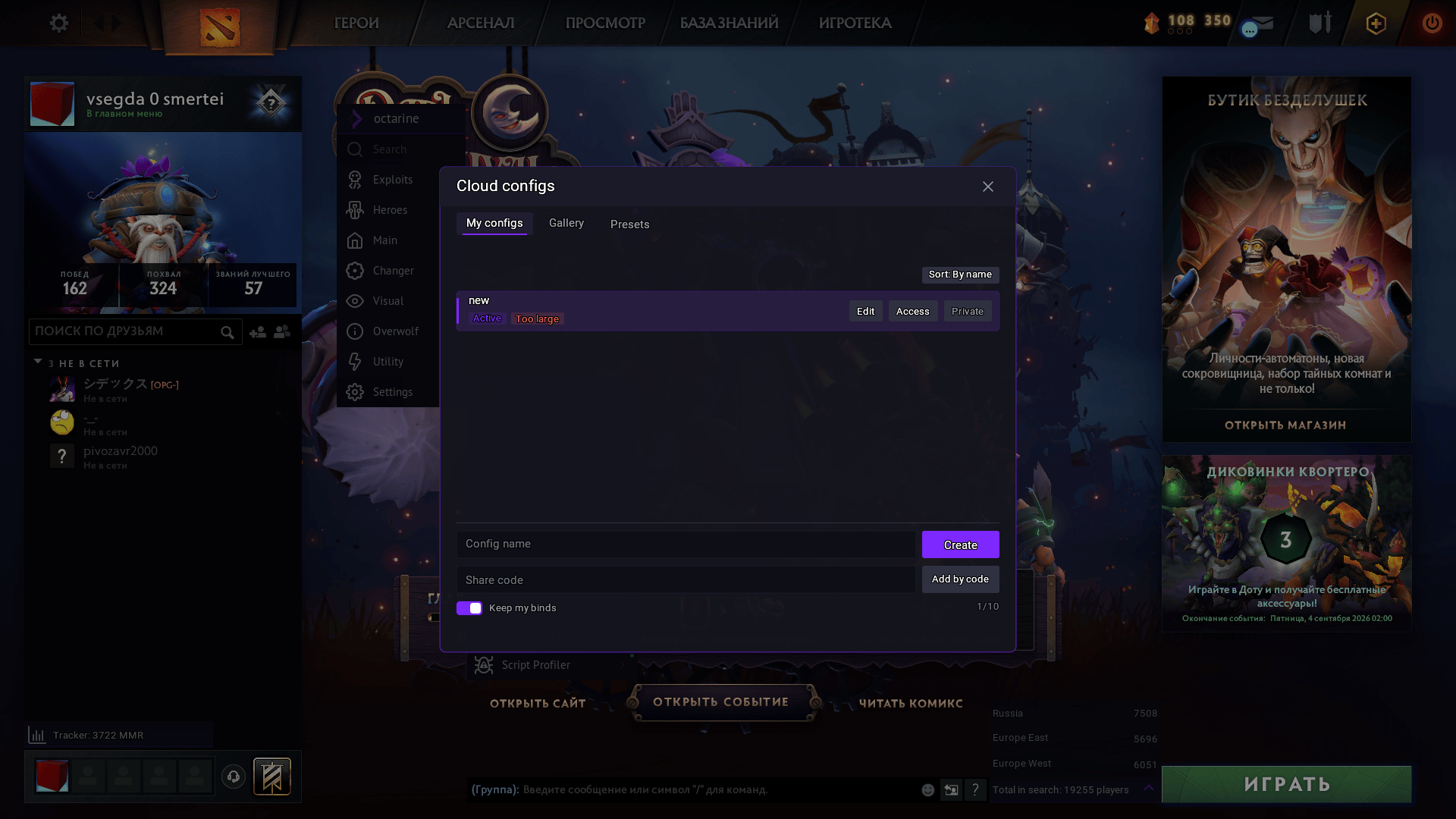
No need to alt-tab: the Cloud configs window in the in-game menu does everything the client does.
- My configs, Gallery and Presets tabs.
- Create a config, add one by code, or switch the active one — in a couple of clicks.
- Edit configs and manage access and privacy without leaving the match.
- A Keep my binds toggle: apply someone else's config without losing your own keys.